Running a technology company requires traveling, most often this means visiting clients or attending conferences. Being on the road means that you cannot always access your secure, on-prem company resources unless you have something like a VPN setup between your laptop and your company network in your office. Many firewall appliances support the IPsec type of VPN tunnel which is a solid option for establishing a secure network connection to your office network while you’re away. It’s one of the most efficient encrypted network tunnels available (if not the most efficient), it’s readily supported by most gateway devices, and it’s natively baked into your operating system.
At ShwaTech we use an OPNsense firewall for routing outgoing and incoming traffic to and from the Internet. Build on FreeBSD, open-source, and commercially supported, OPNsense is a great choice for small businesses. Plus, the web-based GUI makes it easy to setup your own VPN tunnel so you can access critical services securely while on the road.
Benefits of Native VPN
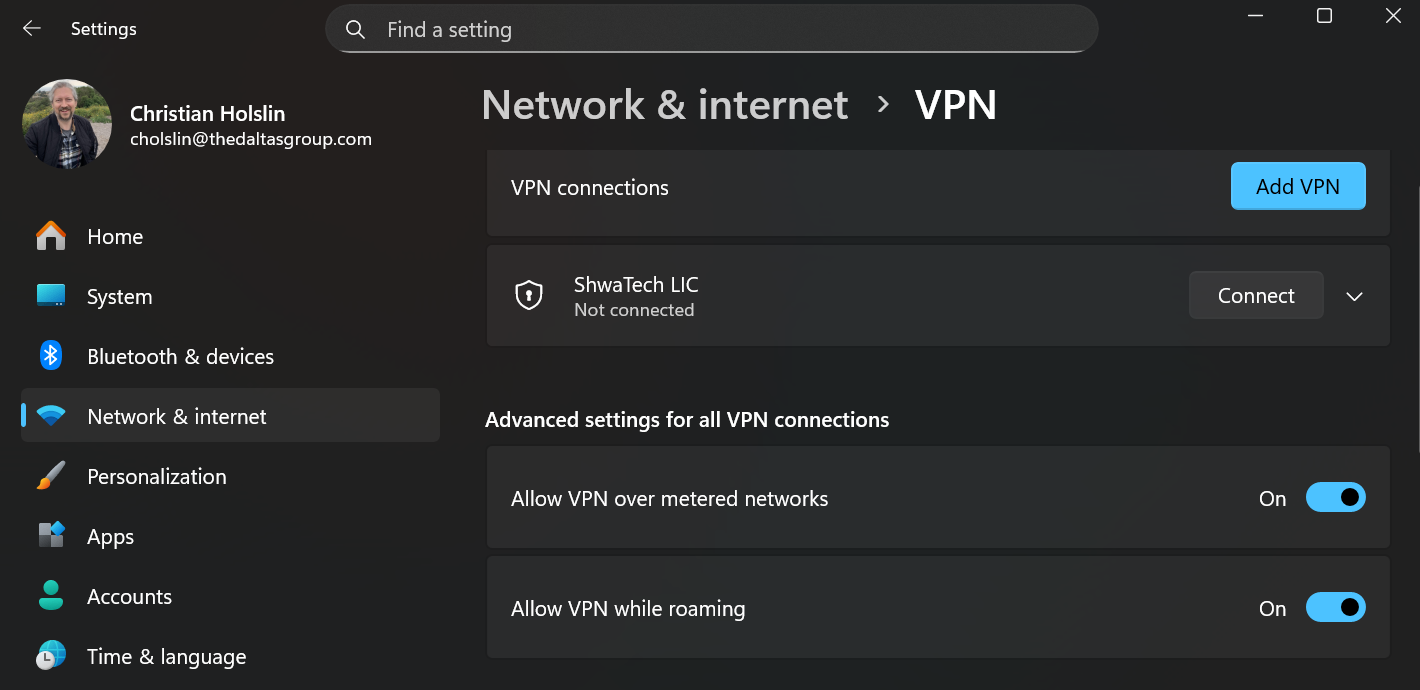
You do not need to install any custom software to setup an IPsec VPN connection. All major operating systems today support IPsec VPN out of the box. As a general practice I prefer native functionality over third-party software. My laptop runs Windows 11 and my network settings include a connection to the ShwaTech office network. One button press and I’m seamlessly and securely connected to my servers without needing to type in any credentials via IKEv2 EAP-TLS IPSec VPN.
Setting Up Your Own VPN
When I’m away I can safely check on my virtual machines, and my client’s virtual machines, without opening up Remote Desktop (or SSH) to the Internet, generally considered a bad idea. VPN solves this issue for me. My office network firewall runs OPNsense providing firewall, IPS/IDS, and VPN capabilities, among many others. The procedure for setting up an IPsec VPN tunnel for “roadwarriors” is very well documented on the OPNsense support site with a page dedicated to IKEv2 EAP-MSCHAPv2 configuration. No need to go into all the details here. Here’s quick summary of the steps involved:
Create a Certificate Authority
Create a connection certificate (if using EAP-TLS)
Create an External DNS Record
Setup Firewall Aliases
Create a Firewall Rule to Allow Incoming Connections
Pick Your IP Addressing Scheme
Configure the VPN Connection
Configure Local and Remote Authentication
Confgiure the Child Node for Connecting Clients
Load the root certificate and connection certificate onto your Windows client (again, for EAP-TLS)
Configure the client VPN connection in Windows
What you will notice as you go about setting up the VPN connection settings that there is a setting called Proposals which appears in a couple locations server-side during setup. This setting determines which ciphers and algorithms are used to secure the tunnel itself. The client and server must use the same proposals or the tunnel cannot be established and the VPN connection will fail. This is the easiest part to overlook or mess up in an otherwise straight-forward setup. This is where I started running into issues when attempting to connect from my laptop.
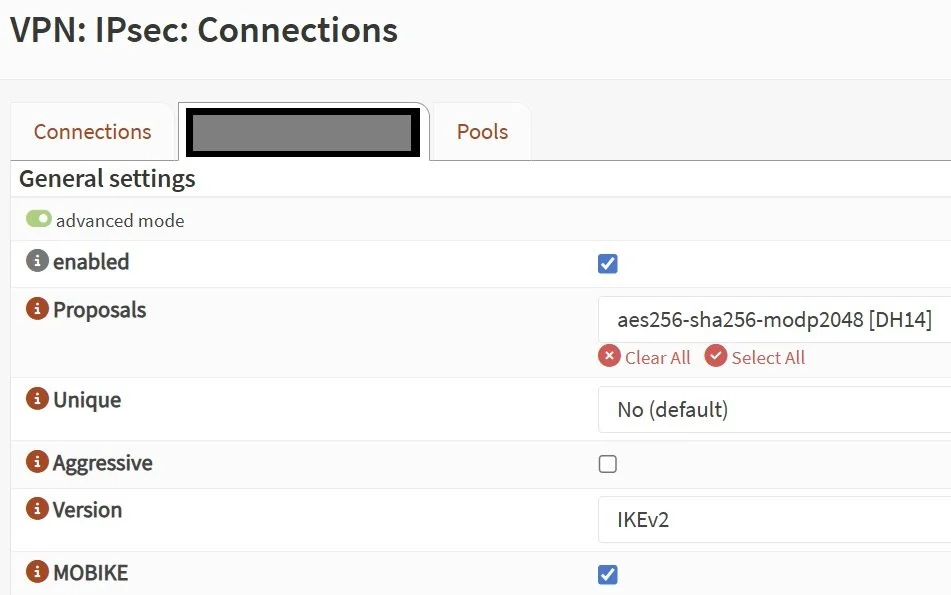
NOTE: It is very important that you DO NOT use insecure options otherwise data going across your tunnel will be much easier to intercept.
One of the common standards for secure proposals for IPsec VPN are 256-bit AES encryption, SHA-256 signatures, and Diffie-Hellman Group 14 key exchange. On top of this you can also encrypt the service traffic from your laptop to your office with TLS 1.2/1.3. This way traffic routed over the VPN tunnel is encrypted by the tunnel as well as by the service making it significantly more difficult to attack via brute force. Modern CPUs have instruction sets called AES-NI which offload AES encryption to the CPU hardware improving performance. Using a firewall with this instruction set available will ensure you are getting the most bandwidth from your VPN tunnel.
Connecting from Windows
When I first configured the VPN connection through the Windows settings application and attempted to connect I was getting errors that the connection was unsuccessful. After double-checking all the settings, confirming the client certificate was loaded and valid, and verifying the firewall rules I ran into a dead end and just about gave up hope. Going back through the OPNsense documentation in detail I discovered a critical step I had missed which was hiding in the following PowerShell script block:
Set-VpnConnectionIPsecConfiguration `
  -ConnectionName "ShwaTech LIC"
  -AuthenticationTransformConstants SHA256 -CipherTransformConstants AES256 -EncryptionMethod AES256 `
  -IntegrityCheckMethod SHA256 `
  -PfsGroup PFS2048 `
  -DHGroup Group14 `
  -PassThru -Force
The Windows 11 GUI for configuring the VPN connection does not include menu items for selecting the proposals required to establish the tunnel successfully at both ends. Remember: the client and server must accept the same proposals and those proposals must be secure otherwise your VPN tunnel, while it may work, may not actually be private at all.
After running the PowerShell to set the proposals above to use SHA-256, AES-256 and Diffie-Hellman Group 14 the tunnel fired right up and I was connected.
Testing and Verification
Keep in mind that you cannot test VPN access from inside your network. You cannot connect to your WAN interface as an outside entity from the inside LAN; it’s impossible. You will look like an inside source. To appear as an outside source use a smartphone or LTE Wi-Fi router to connect instead. This will allow you to verify that your “roadwarrior” VPN configuration is up and running. At ShwaTech we have two ISPs and we use the second ISP to test the firewall of the first ISP. Happy tunneling!