SPICE Up Your Life
We all love shortcuts—double click a thing, open the thing. Saves time! But what about for unusual things like SPICE-based remote virtual machine control? To make this easier for me to setup on my ever-growing collection of physical and virtual computers, I created a PowerShell script that automates the registration of the SPICE protocol handler on my Windows desktops so I can create shortcuts for remote control of my virtual machines running on my Linux servers, via KVM and QEMU, that have window managers.
The Setup Process
The first thing you need, of course, is a virtual machine with a SPICE remote graphics adapter. If you are using KVM/QEMU (or some other supported hypervisor) you can configure your virtual machine to accept remote connections via SPICE. Bear in mind this will open a door for people on your network to get into this virtual machine so make sure you only do this in trusted environments, or at least stick a firewall in between you and the VM host. SPICE connections are password-protected, yes, but some network-level protection is always a good idea. I have a firewall in between my Wi-Fi LAN and my wired LAN where my VMs reside.
If you haven’t done this before, open your virtual machine configuration using the virsh tool on your host.
me@host:/~$ sudo virsh edit my-vm
You will see your virtual machine configuration open up in the terminal. From here you will need to check on a couple things. First, you need to make sure there is a spicevmc channel in the devices list.

The spicevmc channel enables useful stuff like clipboard sharing, among other things, that enable the guest operating system to communicate with the SPICE client. Next, check on the graphics device,

The virtual machine needs a graphics adapter of type spice to access SPICE connections. While it is not required that you set a password with passwd, it is highly recommended that you do. The passwd above, that I cleared out from my configuration, is in single quotes, like this: passwd=’testing’
To remotely connect over the network from a client desktop, you must set the listen address to ‘0.0.0.0’ which will cause the SPICE graphics adapter to accept remote connections on all IPv4 network devices bound to the host machine. I imagine you could set this to the exact IPv4 address of said adapter—or specific adapter—as well, but I use this address for my setup since my virtual machine host has multiple network adapters.
Getting the Port Number
If you do not specify a TCP port using the autoport=’yes’ option then a random port will be assigned when the virtual machine is enabled. Finding this port number requires querying the virtual machine state using the virsh command line tool as such:
virsh dumpxml vm-name | xmllint --xpath "//devices/graphics" - | grep spice
This will dump out the XML element inside the spice adapter with the port assignment:
<graphics type="spice" port="5909" autoport="yes" listen="0.0.0.0">
This can be a pain in the butt to do every time you start up a virtual machine, so it’s much easier if you assign a predefined port number in the virtual machine configuration ahead of time.
Registering the Protocol Handler
Windows keeps all of its protocol handlers defined through the Windows Registry. If you aren’t familiar with the Registry, you can review this Microsoft Learn article on the Registry. It is the system database for Windows itself. You access it by running regedit from the Start menu or Terminal/Command Prompt.
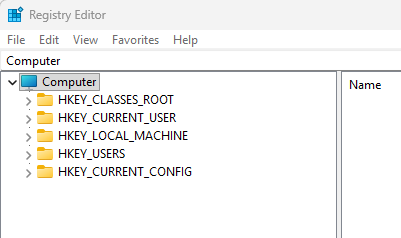
Windows keeps protocol handlers in the HKEY_CLASSES_ROOT registry key. Below is what our fully configured SPICE protocol handler looks like in our registry.
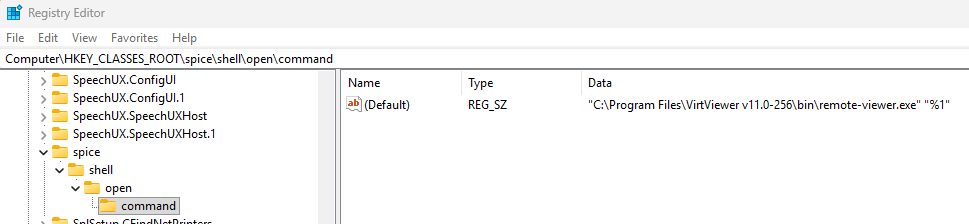
You can set this up by hand, or you can set this up automatically with the PowerShell script I wrote which simply adds and configures these registry keys and values for you. Running the script requires administrative permissions because it modifies the registry. The script assumes that you have installed the virt-viewer from the Virtual Machine Manager downloads page. The script will, by default, search your Program Files directories for the virt-viewer remote-viewer.exe application. You can, however, register the SPICE handler to any tool using the AbsolutePath argument of the PowerShell script.
Testing & Usage
Once you have the SPICE handler registered in your Windows Registry, your Windows desktop will now automatically spawn any URLs that start with spice:// sending the host and port information to the remote-viewer.exe application.
To make sure it works, right-click on your Desktop and select New -> Shortcut.
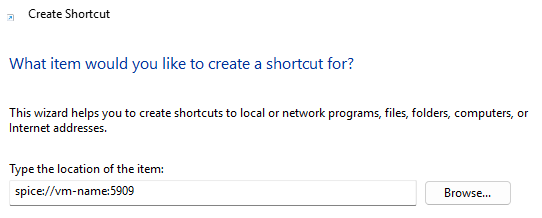
If the SPICE protocol handler is NOT registered, Windows will throw an error saying it cannot find the location of the item you specify. However, once registered, you will be able to successfully create the shortcut to your virtual machine. Double click on the shortcut and you’ll get connected to your virtual machine straight away!